
Microsoft Access, a powerful relational database management system from Microsoft, allows users to create secure applications by implementing features like login forms. A login form serves as the entry point to your database application, authenticating users based on credentials such as usernames and passwords to control access levels, protect sensitive data, and ensure compliance with security best practices. This is particularly useful in multi-user environments where you want to restrict certain operations (e.g., editing records or viewing reports) to authorized personnel only.
In the following sections, we'll explore the step-by-step process of creating and customizing a login form, including setting up user tables, writing VBA scripts for authentication, and troubleshooting common issues. Whether you're building a simple inventory tracker or a complex enterprise database, starting with a robust login system lays the foundation for a secure and efficient Access application.
First, creating the tables.
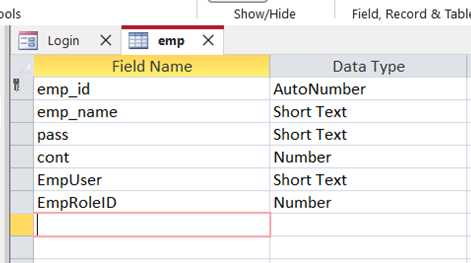
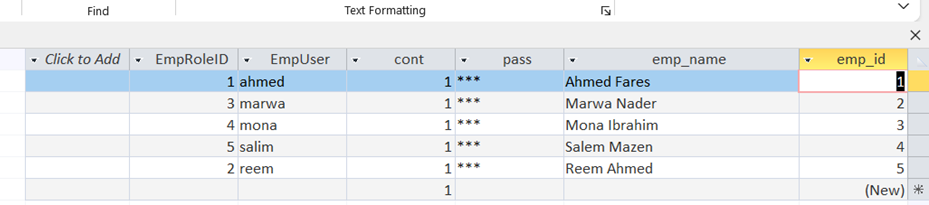
We create a table containing the names of the employees, their passwords, their roles, and whether they are currently employed or have left the company, as shown below:
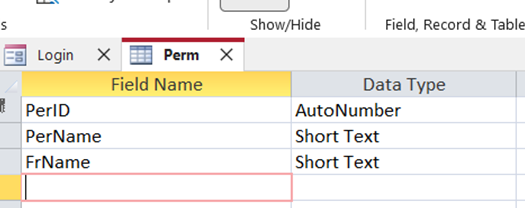
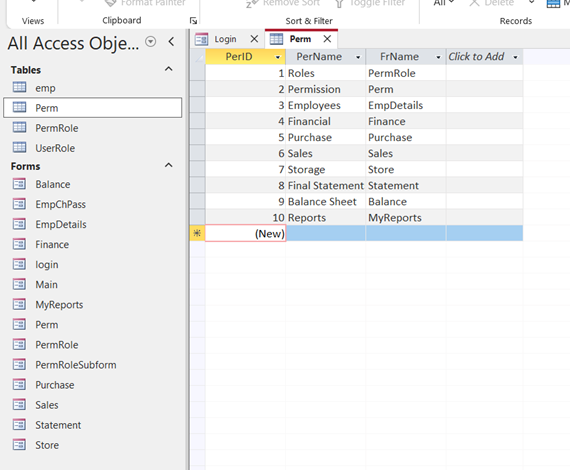
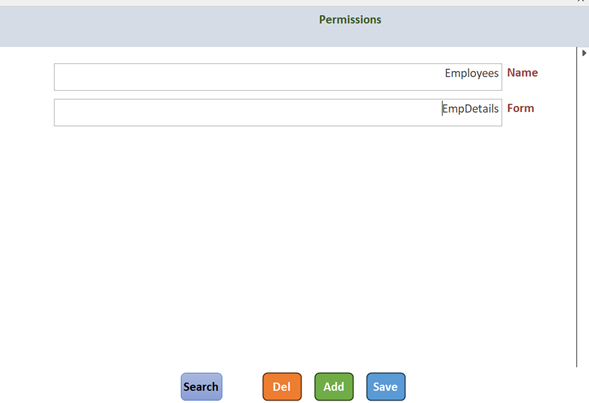
Then we create a permissions table which contains the permission name and the database form name associated with this permission, as follows:
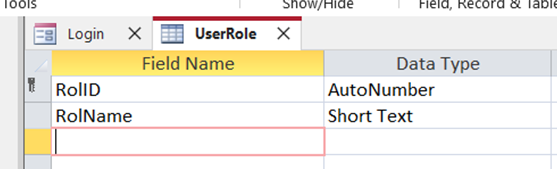
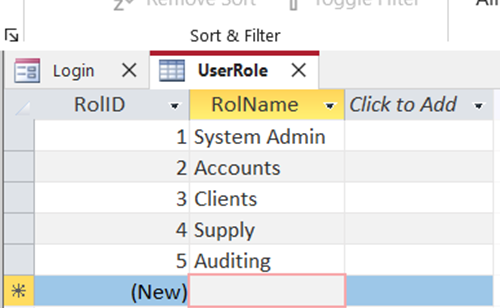
Then we create a table containing the codes and names of the roles, as shown below:
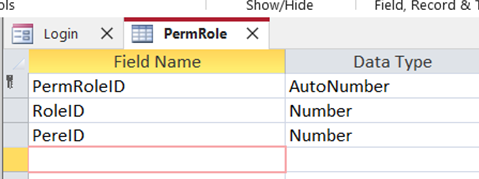
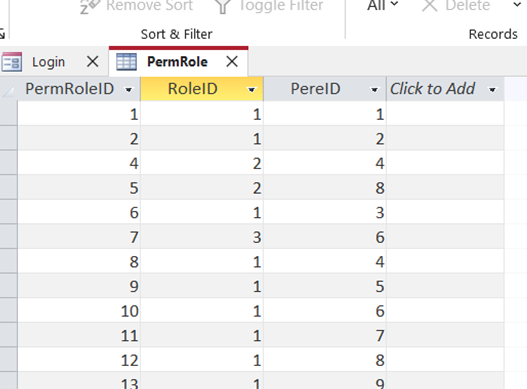
Then we create the final table, which contains the link between each role and its respective permissions, as shown in the following diagram:
Second, creating forms
We create a form to add, delete, or modify permissions and the names of the associated forms, as shown below:
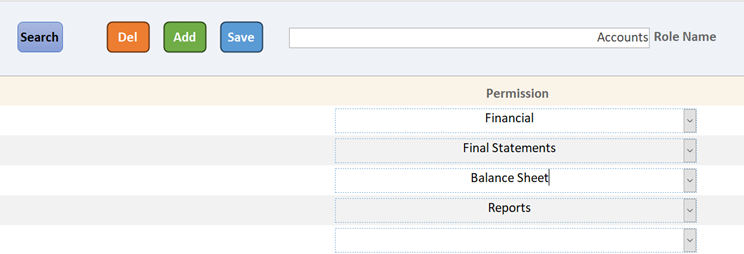
Then we create a form to add, delete, or modify roles and assign permissions to each role, as shown below:
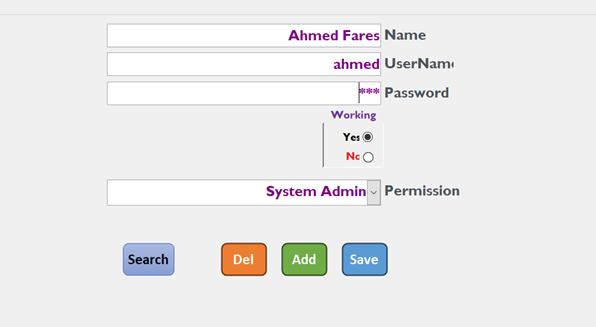
Then we create a form to add, delete, or modify employee data, containing the employee's name, username, password, continued employment status, and assigned role, as follows:
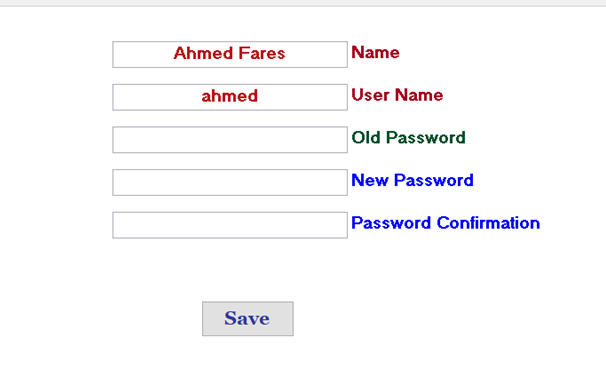
Then we create a password change form containing the username, current password, and new password, as shown in the following figure:
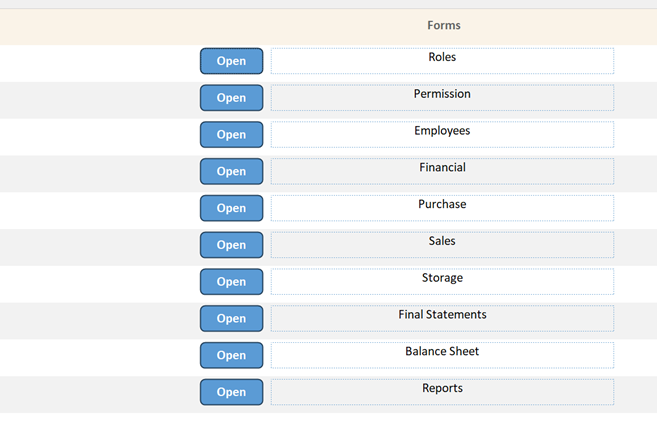
Then we create a form that displays permissions according to each employee's role, and next to each permission there is a button to display its corresponding form, as follows:
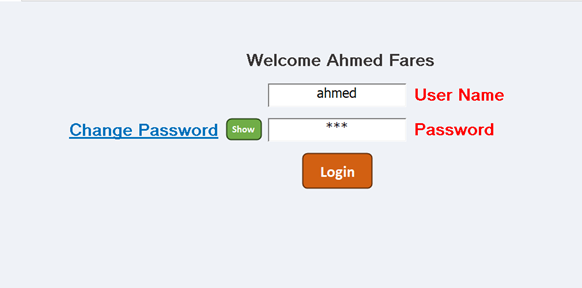
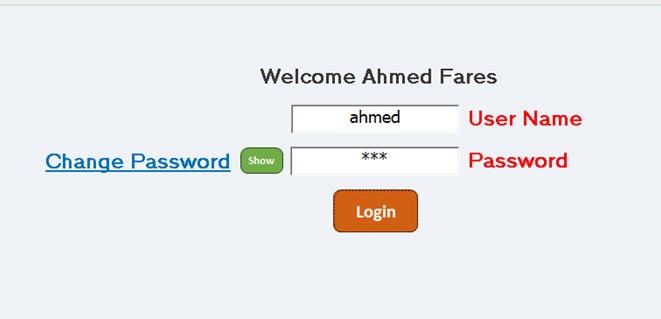
Then we create a login form containing the username and password. Next to the password is a small button to display the password and text to change the user's password. If the user and password are correct, the text "welcome" will be displayed, along with the employee’s name. When clicking "Login," the user will enter the main screen, which displays only the user's permissions according to the role previously recorded on the employee screen, as shown in the following figure:
This gives you a flexible system for employees to access specific forms according to each employee's role, with the ability to easily add, delete, or modify roles, permissions, and work forms.
Download an example of the login system >> 👇 👇 👇
Fares Solution MS Access Login Example
Admin Username: ahmed
Password: 123
Training Request
Service Request
 |  |  |  |